Invite a coach to collaborate
Invite another coach to share your workspace.
Where to go: Roster / Coaches or Settings / Connections
Step by step
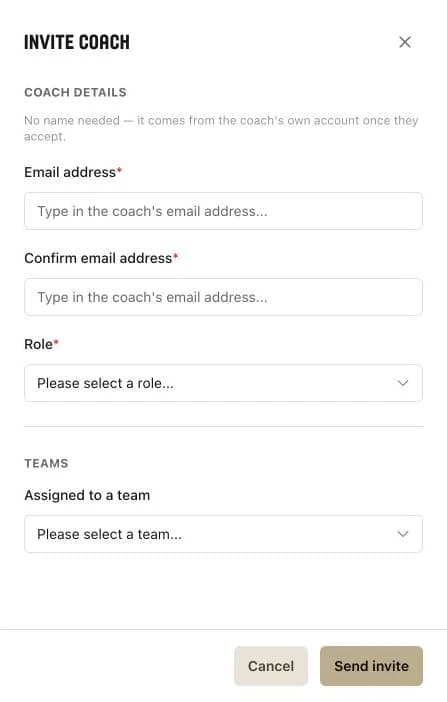
- Select Invite new coach. Enter Email address and repeat it in Confirm email address.
- Choose Role and, if applicable, Assigned to a team. The name is taken from the coach's account after acceptance.
- Before clicking Send invite, check the email and active workspace. The invitation gives access to the whole workspace.
- After sending, check Settings > Connections. Pending invitations lists invitations awaiting a response.
- Connected accounts shows coaches who accepted an invitation and share the workspace.